
Move Over, Toybox: Why Kidoodle is the Top Choice for Kids This Year
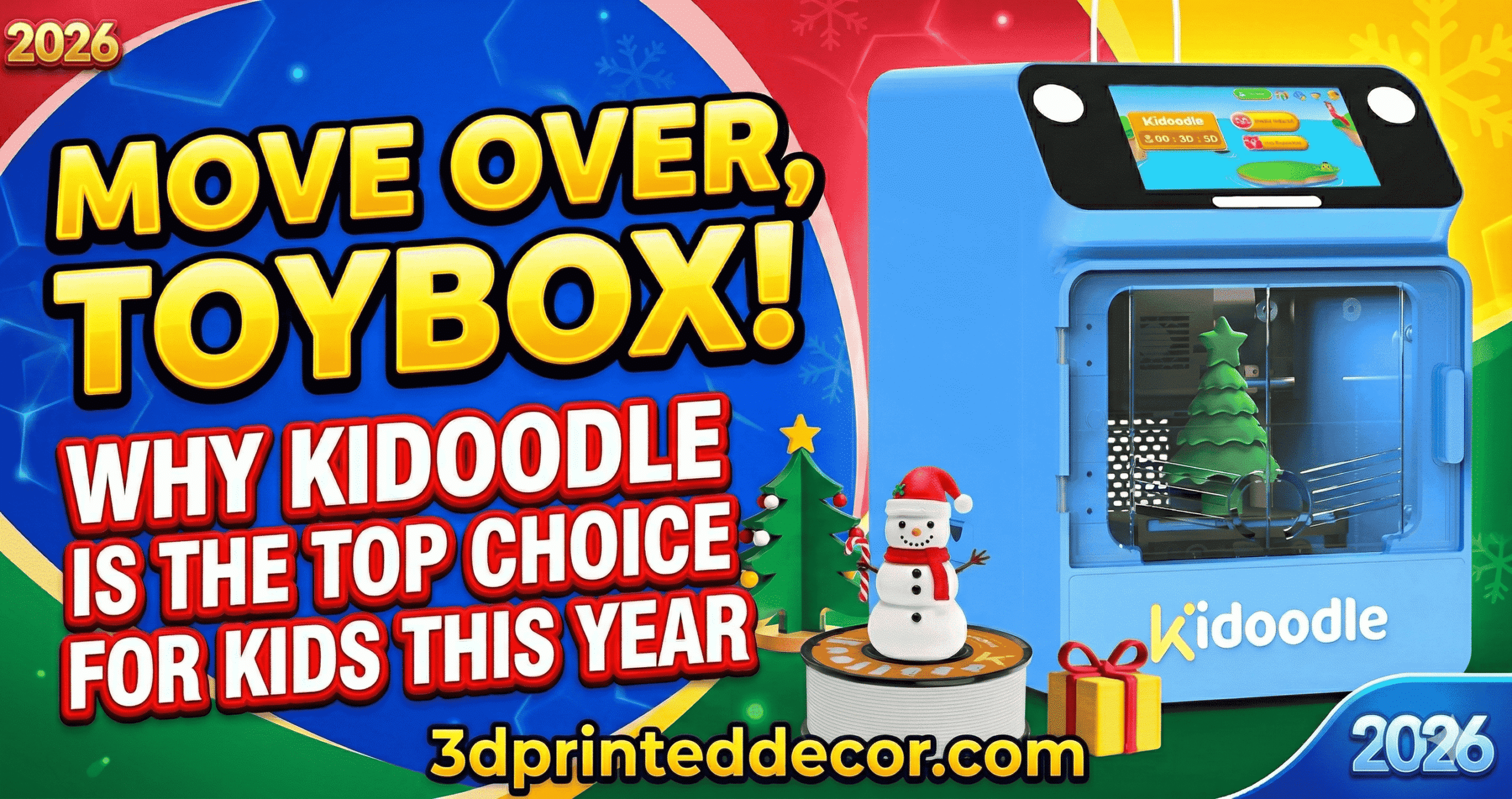
The Kidoodle’s large touchscreen is the feature that sets it apart — note how the interface is designed entirely for small hands and limited reading ability.
🛒 Check Price & Buy Kidoodle on Amazon ✦ As an Amazon Associate I earn from qualifying purchasesI own a Creality K1 Max and an Ender 3. I’ve spent years dialing in slicers, tweaking retraction, and rebuilding hotends at midnight. When Kidoodle asked me to test their printer with my six-year-old for a week, I was skeptical. Most “kids” printers are just underpowered adult printers in colorful plastic.
The Kidoodle is not that. It is a fundamentally different category of machine. The entire design premise — a standalone touchscreen catalog, pre-sliced models, Wi-Fi download, zero-slicer operation — is something I have not seen executed this well in any device at this price point.
By day three, she was printing solo. By day seven, she found the USB drive I had prepared, navigated the menu herself, and printed three models while I napped. I’m writing this review as a parent with a decade of 3D printing experience — not as someone who is easily impressed.
✓ Pros
- Truly standalone — no phone or computer
- Large, readable touchscreen with model thumbnails
- Built-in model catalog (hundreds of models)
- Direct drive extruder + all-metal hotend
- Works offline with pre-loaded models
- Fast enough: most prints in under an hour
- Compatible with standard 1kg PLA spools
- Compact — fits on any kids’ desk
✗ Cons
- No heated bed — glue stick is mandatory
- Plastic frame feels toy-grade (because it is)
- 1kg spool holder needs redesign or print
- Custom slicer profiles not yet official
- Retail price post-Kickstarter unknown
- Branded Pokémon models need a PC + USB
Kidoodle 3D Printer: Quick Spec Sheet
| Spec | Detail |
|---|---|
| Extruder Type | Direct Drive |
| Hotend | All-metal |
| Filament | 1.75mm PLA (250g included; 1kg compatible) |
| Heated Bed | No — glue stick required |
| Connectivity | Wi-Fi + USB drive |
| Screen | Large color touchscreen (model thumbnails) |
| Built-in Catalog | Hundreds of models, offline + online |
| Slicer Support | Kidoodle Slicer (official); Orca/Cura (unofficial, use with caution) |
| Frame | Plastic enclosure |
| Target Age | 6 and up (with initial adult setup) |
| Buy on Amazon | Check current price → |

Kidoodle 3D Printer for Kids — click to check price on Amazon
Can a 6-Year-Old Really Use It Without Help?
Yes — and not just “kind of.” My daughter can power on the Kidoodle, browse the catalog by scrolling through thumbnail images, apply the glue stick, select a model, confirm the print, and wait for it to finish. All without me in the room.
The glue stick step requires one teaching session. She rushed it the first time and missed spots; I showed her to coat the whole plate slowly and evenly. After that, she had it. It actually became a lesson in attention to detail — an unexpected win.
The screen is the real innovation here. There are no text-heavy menus. Models display as large previews. You tap what you want, and the printer starts warming up and downloading simultaneously — a small but clever UX detail I wish my adult printers had.
Print Quality: Good for a Kids Printer, Not a Professional Tool
The Kidoodle is a toy. A well-made one, but a toy. Print quality with the native Kidoodle Slicer is solid for fun objects: articulated dragons, unicorns, letter sets, gear bearings. A Darth Vader bust printed at half-scale came out clean. A Low-Poly Pikachu from a USB drive worked without issues.
The articulated octopus — one of the harder test prints — worked at stock settings using glue. I failed several times on this exact model five years ago on my Ender 3. The Kidoodle got it first try with pre-sliced settings.
The Tiny Owl from McGybeer required scaling to 1.5× to release the articulated head. At stock size, the tolerances were too tight. This is a calibration limitation, not a fatal flaw — just something to know.
Hardware Deep Dive: Where Kidoodle Punches Above Its Price
The direct drive extruder and all-metal hotend are legitimately good components — better than what I had on my original Ender 3. The cooling fan is wide-format and well-positioned; you feel actual airflow through the door opening, which matters for PLA overhangs.
The touchscreen is excellent. No tweezers needed to tap tiny buttons. My daughter can navigate it with fingers still sticky from glue.
The frame is plastic. It makes movement sounds. It is not a Bambu Lab. It is a kid’s device with the right priorities: screen quality, extruder quality, and software — not chassis rigidity. For the target use case, this tradeoff is correct.
The 1kg Spool Holder Problem (and the Fix)
The included spool holder is sized for the 250g starter spool. Standard 1kg spools are too wide. Kidoodle ships a printable adapter model — but that’s circular if you haven’t got it working yet.
I designed a custom adapter in Fusion 360. Print it first on a friend’s printer or order it online, then you’re set for life with any spool. Kidoodle should ship an updated holder — this is the one quality-of-life miss on an otherwise thoughtful product.
🛒 Buy the Kidoodle 3D Printer on Amazon ✦ As an Amazon Associate I earn from qualifying purchasesThe Reality of Long-Term Ownership
What Actually Gets Annoying
Glue stick management. That’s the honest answer. Every print needs glue on the bed, and every finished print needs washing. It’s not difficult, but it’s a ritual. Keep a dedicated cleaning cloth and an old toothbrush near the printer. Expect the plate to need re-gluing after 2–3 prints.
The door has some fitment roughness. My daughter constantly tried to look through the ventilation slots rather than watching from the side. Not a problem, just notable. A clear door panel would be a simple upgrade in a future revision.
Hidden Costs
PLA filament is cheap — 1kg spools run $15–25. Power consumption is low; this is a small enclosed printer, not a power-hungry CoreXY. There are no subscriptions. The online model catalog appears to be free with Wi-Fi connected.
You’ll want extra glue sticks. Buy a multi-pack. You’ll also want a dedicated USB drive that stays with the printer permanently so the USB-based model workflow doesn’t become a “where did I put it” problem.
The Tinkerer’s Hack: Pre-Warm the Plate
There’s no heated bed — but you can get better first-layer adhesion by running a short 5-minute warm-up print (any small flat disk) before your main print, then applying fresh glue on a slightly warm plate. The glue bonds faster and more evenly. Not in any manual; learned it by experimenting.
Kidoodle vs. AOSEED X-Maker Joy vs. Asani Mini: 2026 Kids 3D Printer Comparison
These are the three most relevant options for parents shopping for a kids 3D printer in 2026. Here’s how they stack up across the features that actually matter.
| Feature | Kidoodle | AOSEED X-Maker Joy | Asani Mini | Winner |
|---|---|---|---|---|
| Standalone (no phone) | ✓ Yes | ✗ App required | ✗ App required | Kidoodle Only option with zero phone dependency |
| Built-in Model Catalog | ✓ Hundreds | ✗ App-based | ✗ None | Kidoodle No computer ever needed for catalog prints |
| Screen Quality | Large color touch | Small LCD | No screen | Kidoodle Best UX for young children |
| Custom Model Design | Limited (PC only) | ✓ In-app design | STL import | AOSEED Best for kids who want to design their own models |
| Extruder Type | Direct Drive | Bowden | Bowden | Kidoodle Better for flexible filament and reliability |
| Heated Bed | ✗ No | ✗ No | ✗ No | Tie All three require glue for adhesion |
| Target Age | 6+ | 8+ | 10+ | Kidoodle Lowest age independence of any option |
| Price Tier | Budget–Mid | Mid | Budget | Kidoodle Best value for the feature set at this price |
| Buy Link | Amazon → | — | — |
See my full review of the AOSEED X-Maker Joy for a deeper look at the app-based design approach — it’s the better choice for ages 9+ who want to build their own models. For the Asani Mini, my review covers why it works for cost-conscious families but lacks the catalog depth.
Is the Kidoodle Good for Classrooms and Schools?
Yes — and this is one use case where the Kidoodle’s design makes even more sense. Each unit is compact, self-contained, and doesn’t require IT setup beyond Wi-Fi. A classroom of 10–15 units where each student or pair manages their own printer is genuinely realistic.
The catalog model set is curriculum-appropriate: geometry shapes, letters, numbers, simple machines like gear bearings. Teachers can load custom STLs via USB without needing students to touch a slicer. That’s a significant operational advantage over standard FDM printers in school settings.
Durability at scale is the open question. The plastic frame will take hits in a classroom environment. Only time and volume will answer that.
For broader educational printer context, see my roundup of best 3D printers for school children.
Who Should Buy the Kidoodle — and Who Should Skip It
Buy It If:
Your child is 6–10 years old and you want them to develop independence and creativity without constant adult supervision. You want a printer that works without a phone, an account, or a slicer lesson. You’re happy with fun, functional prints rather than show-quality output.
🛒 Get the Kidoodle on Amazon — Check Today’s Price ✦ As an Amazon Associate I earn from qualifying purchasesSkip It If:
Your child is 10+ and wants to design their own models — look at the AOSEED X-Maker Joy vs. X-Maker comparison instead. You want pro-quality surface finish. You plan to run it alongside adult printers with unified slicer workflows — the Kidoodle’s profile situation makes that messy right now.
If you want to understand how the Kidoodle fits into the broader landscape, see my best 3D printers for kids and teens guide and the updated best 3D printers of 2026 overview.
Kidoodle vs. Bambu Lab A1 Mini: Should You Just Buy the “Real” Printer?
The Bambu A1 Mini is a far superior printer in terms of speed, quality, and slicer support. It is not a kids printer. It requires Bambu Studio, a phone for AMS monitoring, and an adult to manage supports and settings.
The question isn’t which prints better — Bambu wins that handily. The question is: which one can your 6-year-old use alone at 3:00 PM on a Saturday while you’re doing something else? The answer is Kidoodle. These products solve different problems.
For older teens who can handle a real workflow, I’d recommend reading the Bambu A1 Mini vs Ender 3 V3 SE comparison and the Bambu A1 vs A1 Mini guide to find the right entry into the adult ecosystem.
How Much Does the Kidoodle Cost — and Is It Worth It?
During Kickstarter, the Kidoodle is very competitively priced. Retail pricing post-launch is not confirmed as of this review. For context, I’ve covered how 3D printer prices have moved in my guide to 3D printer costs — the Kidoodle sits comfortably in the range that makes sense for a dedicated kids device.
Comparable standalone kids tech — tablets, learning laptops — often costs as much or more. The Kidoodle delivers a tactile, creative experience those devices can’t match. For families who want a hands-on STEM toy with actual output, the value equation is strong.
For holiday or birthday gifting context, see my best 3D printers under $300 list and the 10 best Amazon kids devices guide where Kidoodle fits naturally alongside other kid tech.
Frequently Asked Questions: Kidoodle 3D Printer 2026
Related posts:
 Asani Mini 3D Printer Review: Affordable, User-Friendly, and Kid-Approved!
  AOSEED X-Maker Joy 3D Printer: Best Tech Gifts for Kids and Teens
  Best 3D Printers for School Children in 2025: Safe, Educational, and Fun
  Best 3D Printers of 2025: Top 10 Picks for Speed, Quality & Budget (USA Tested)
  Best Beginner 3D Printers of 2025: Affordable Picks Under $500
  The Ultimate 3D Printer Tier List 2025: Best Machines for Beginners, Pros & Every Budget
  Top 5 Reasons to Buy the Elegoo Neptune 4 Plus in 2025 (And 2 Reasons Not To)
  Bambu Lab A1 Mini Hands-On Review: Best All-Around 3D Printer in Its Class?
  Prime Day 3D Printer Deals 2025: Top Picks for Hobbyists and Makers
  Ultimate Flashforge 3D Printer Guide 2025: Compare All Models
  18 Insane Black Friday 3D Printer Deals 2025 (Actually the Lowest Prices We’ve Ever Tracked with Keepa)
  Bambu Lab 3D Printer Review 2026: Real User Experience After 1000+ Hours