

Real-World Experience: 30 Days with the Creality K2 Pro Combo
After spending a month with the Creality K2 Pro Combo, I’m ready to share what actually matters—the good, the frustrating, and everything in between. This isn’t your typical “unboxing” review. We’ve pushed this machine through ASA prints, multicolor projects, and those late-night print sessions that reveal a printer’s true character.
Coming from the K1 Max and K1C, I was curious whether Creality’s latest flagship would justify the $1,049 price tag. Spoiler alert: there’s a lot to love, but it’s not perfect. Let’s dive into what you really need to know before hitting that buy button.
Creality K2 Pro Combo Review: The Complete Package
Creality K2 Pro Combo Multicolor 3D Printer
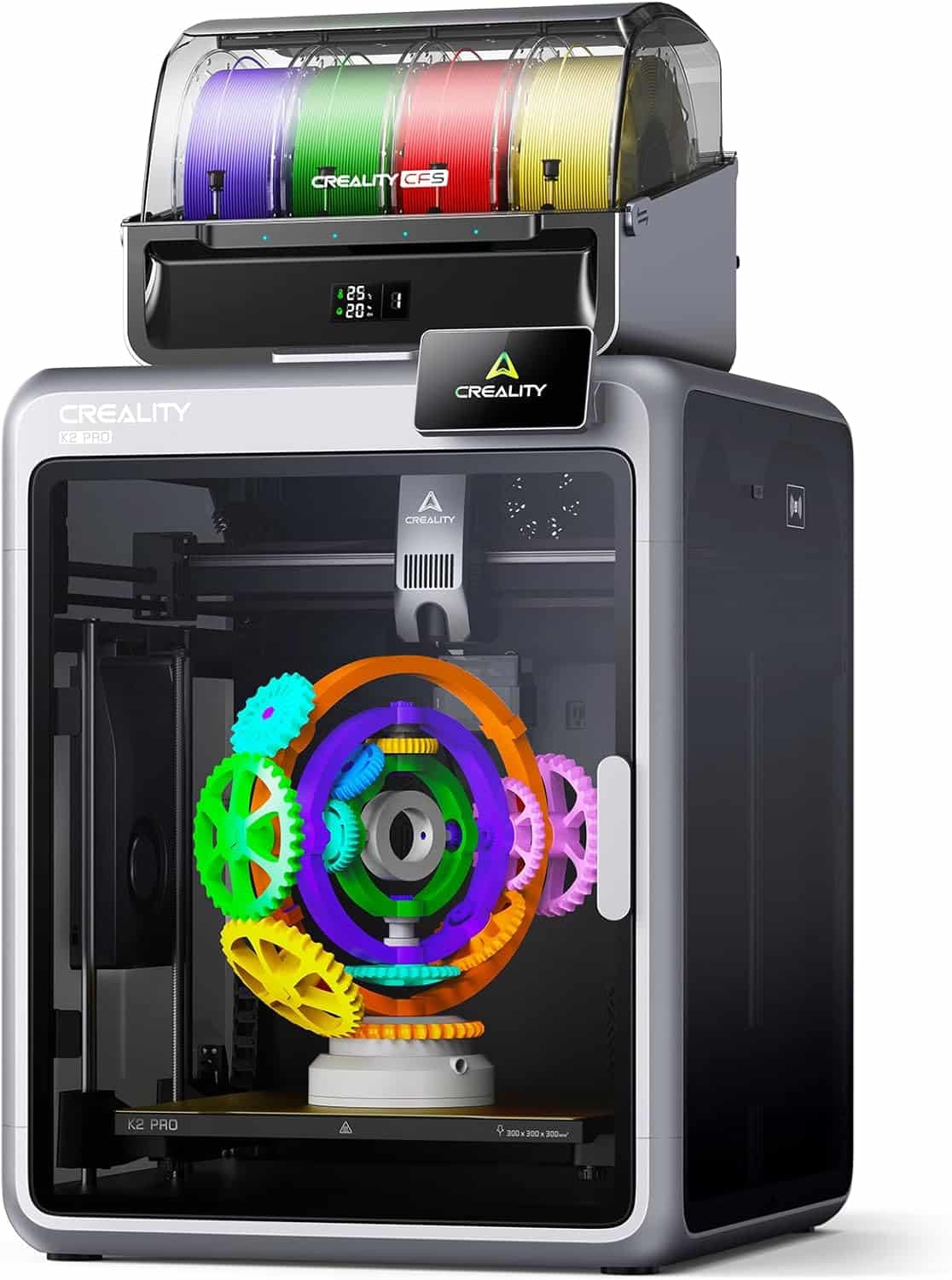
Key Specifications
Editor’s Quick Take: The K2 Pro Combo represents Creality’s most mature printer yet—a genuine “appliance-grade” 3D printer that your parents could use. With exceptional build quality, integrated multicolor printing via CFS, and speeds up to 600 mm/s, it’s a powerhouse. However, the weak chamber heater and excessive filament waste during color changes prevent it from being perfect.
✓ What We Love
- Significantly improved chassis and frame rigidity over K1 series
- Front-accessible toolhead makes maintenance incredibly easy
- Native Fluidd access without rooting (port 4408)
- Linear rail X-gantry with wider belts reduces VFA
- Bed leveling knobs included from factory
- Dual AI cameras for monitoring and flow calibration
- CFS integration is truly plug-and-play
- Hardened steel nozzle handles abrasive materials
- Improved cable chain management
- Quieter operation than K1 Max despite higher speeds
✗ Room for Improvement
- Chamber heater is disappointingly weak (barely reaches temp)
- Camera quality is poor in default lighting conditions
- Lighting needs serious upgrade (current LEDs are inadequate)
- Start print sequence takes unnecessarily long
- PTFE tube rubs on glass lid (clearance issue)
- Screw tilt adjust requires manual file installation
- Excessive filament purging during color changes
- Nozzle wipes on build plate (old-school method)
- No waste chute included (community mods required)
- Firmware still locks some Klipper functions
What Makes the K2 Pro Different: Major Improvements Over K1 Series
Let’s talk about what actually changed. Creality didn’t just slap a new badge on the K1 and call it a day. The K2 Pro represents a genuine evolution, and after weeks of use, these improvements are what stand out most.
Chassis and Frame: Finally, a Printer That Feels Premium
The frame on the K2 Pro feels substantially more rigid than the K1 Max. Creality adopted an aerospace-grade aluminum alloy exoskeleton that eliminates the flex I experienced with the K1 series. When you’re printing at 600 mm/s, frame stability isn’t just nice to have—it’s essential.
What really impressed me? The side panel screws are now accessible from the inside. It’s a small detail that makes the printer look cleaner and more polished. This is the kind of refinement you’d expect from premium brands like Bambu Lab, not budget-focused Creality.
Toolhead Design: Maintenance Becomes Actually Enjoyable
Here’s where the K2 Pro truly shines. The hotend now attaches from the front, and the extruder pops off with just three screws. No more removing the stepper motor. No more contorting yourself to access components.
I had to clear two jams during testing (thanks to some questionable filament), and what would’ve been a 20-minute ordeal on the K1 took maybe 5 minutes. The improved extruder design with hardened steel gears handles flexible and abrasive materials without complaint.
Linear Rail X-Gantry: Community Mods, Now Stock
Creality clearly paid attention to the community. The BCJ (BootyCallJones) linear rail mod was one of the most popular upgrades for K1 owners, and Creality essentially built it into the K2 Pro. Combined with wider belts, this setup delivers:
- Noticeably reduced vertical fine artifacts (VFA)
- Better stability during rapid direction changes
- Improved overall print quality, especially on tall prints
- More consistent layer adhesion at high speeds
The difference is most obvious when printing tall decorative items at 400+ mm/s. Layer lines are cleaner, and I’m seeing less ringing on sharp corners.
Electronics Access: No More Upside-Down Gymnastics
Remember having to flip the K1 on its side to access the motherboard? Those days are over. The K2 Pro’s electronics are easily accessible, with only the belt system at the bottom. Cable management is cleaner too—everything runs through improved cable chains that feel more durable than the K1’s.
The Multicolor Revolution: CFS Integration Done Right
The Creality Filament System (CFS) integration is where the K2 Pro Combo earns its “Combo” designation. Unlike retrofitted multicolor systems, the K2 Pro was designed from the ground up to work with CFS.
What You Get with CFS
CFS System Features
The integrated filament cutter is a small touch that makes a big difference. No more filament blobs at the end of your prints. When you remove filament, it’s cut clean. If you decide to add more CFS units later, it’s genuinely plug-and-play.
The Good: Where K2 Pro Exceeds Expectations
Native Fluidd Access Without Rooting
This deserves major praise. Connect the printer to your network, navigate to the IP address with port 4408, and you’ve got full Fluidd access. No helper scripts, no rooting, no command-line wizardry. For advanced users who want more control over their printer, this is huge.
Yes, you still need to enable root for camera functionality in Fluidd, but the process is straightforward and well-documented in community forums.
Print Quality: Out-of-the-Box Excellence
Here’s what matters most: print quality is exceptional right out of the box. The default profiles in Creality Print work remarkably well. My test benchy at 300 mm/s showed minimal stringing, clean overhangs, and excellent dimensional accuracy.
Compared to my heavily-modded K1 Max (with Cartographer, BCJ gantry, and Mandella Roseworks bed), the stock K2 Pro delivers comparable quality without the $500+ in upgrades. That’s the definition of value.
Bed Leveling: Manual Adjustment Finally Possible
Creality included bed leveling knobs from the factory. This seems basic, but the K1 series didn’t have them initially. My bed variance across the full 300x300mm surface is only 0.20mm, which is impressive for a printer at this price point.
The AI-powered auto-leveling only probes the area you’re actually printing on, which cuts setup time significantly. It’s smarter leveling, not just more leveling.
Display Position: Ergonomics Matter
Moving the display to the top of the frame seems minor until you’ve used it. If your printer sits on the floor or a low shelf, you’ll appreciate not having to bend down every time you want to check status or adjust settings.
Improved Calibration: Goodbye, Terrible LiDAR
The K1’s LiDAR system was universally panned, and Creality listened. The new nozzle camera calibration system is faster, more reliable, and actually works. Calibrations that took 10+ minutes on the K1 now complete in 3-4 minutes.
The Bad: Honest Problems You Should Know About
Chamber Heater: The Biggest Disappointment
Let’s not sugarcoat this: the chamber heater is inadequate. I ran an ASA print with the chamber set to 60°C, and not only did the print start before reaching temperature, but it completed before the chamber got anywhere close to the target.
The heater fans barely move air. My K1 Max with its aftermarket 1000W heater would reach chamber temp faster than the K2 Pro’s “active” heating system. For ABS and ASA printing, this is frustrating.
Camera Quality: Surprisingly Poor
The camera quality is disappointing. In stock lighting conditions, the feed is grainy and low-resolution. I thought a print was failing once—it was just the poor camera quality making things look worse than they were.
This is especially frustrating given that Creality markets dual AI cameras as a major feature. The AI functionality works fine; the image quality just isn’t there. Better lighting helps, but again, that’s an upgrade you shouldn’t need.
Lighting: Budget LEDs on a Premium Printer
Speaking of lighting: Creality, COB LED strips are dirt cheap now. Why are we still using basic LEDs that barely illuminate the build area? A single strip across the front would transform the user experience and make that camera actually useful.
Start Print Sequence: Painfully Slow
The start print routine takes forever. The printer homes, drops the bed, homes Z, drops the bed again for object detection, raises it, then goes through bed leveling. This entire dance takes 3-4 minutes before the first line of filament gets laid down.
There’s room for optimization here. Community macros can speed this up, but out-of-box experience suffers.
PTFE Tube Clearance: Design Oversight
The gap between the top frame and glass lid is too small. The PTFE tube rubs against the glass, scuffing the protective film (yes, there’s a film on the inside that will eventually peel off, but still).
Several community members have designed lid risers on Printables, which solve the problem but highlight a design flaw that shouldn’t exist on a $1,000+ printer.
Klipper Functions Still Locked
We’re so close to greatness here. Creality gives us native Fluidd access but still locks key Klipper functions. Screw tilt adjust, for example, requires manual file installation and configuration. Updates wipe your custom configs unless you back them up.
Why provide bed adjustment knobs but make screw tilt adjust unavailable out of the box? It’s frustrating inconsistency.
Nozzle Wiping on Build Plate
While there’s a silicone wiper near the purge chute, the printer still rubs the nozzle on a dedicated area of the build plate. For those of us who’ve ruined build plates this way in the early days of 3D printing, it’s anxiety-inducing.
The hardened steel nozzle makes this less concerning, but I’d still prefer a dedicated wiper solution.
The Other: Neither Good Nor Bad, Just Reality
No Waste Chute (But Easy Community Fix)
Every multicolor printer manufacturer does this: the purged filament just drops out the back. It’s not a K2 Pro problem; it’s an industry problem.
Thankfully, the community has created dozens of printable waste chutes. I printed one in the first week and haven’t thought about it since. Still, Creality could include STL files on the USB drive.
Excessive Filament Purging
This is the multicolor printing tax, but the K2 Pro’s purge volumes feel excessive. I’ve tried adjusting flush values in Creality Print and Orca Slicer—the printer ignores them and purges the same amount regardless.
For small multicolor prints, watching 30-40% of your filament become waste is heartbreaking. This needs a firmware fix to give users actual control over purge amounts.
CFS Spool Pressure Springs: Adequate But Not Great
The spring tension on CFS spools works but isn’t optimal. Community mods exist to improve tension consistency. For the price point, Creality could have engineered a better solution.
No Y-Splitter for Side Spool and CFS
If you want to use both the side spool holder and CFS simultaneously, you’ll need to print a Y-splitter. Again, printable solutions exist, but Creality could include this as a pre-sliced file on the USB.
Performance Testing: Real-World Results
| Test Category | K2 Pro Combo | K1 Max (Stock) | K1 Max (Modded) |
|---|---|---|---|
| Benchy at 300mm/s | 18 min, excellent quality | 19 min, good quality | 17 min, excellent quality |
| Chamber Heat to 60°C | 15+ minutes (inadequate) | 8-10 min (stock heater) | 4-5 min (1000W upgrade) |
| Bed Leveling Time | 2-3 minutes (smart probing) | 5-6 minutes (full mesh) | 3-4 min (Cartographer) |
| Maintenance Access | Excellent (front access) | Poor (side access) | Poor (unchanged) |
| Multicolor Support | Native CFS integration | Aftermarket only | Aftermarket only |
| Noise Level (dBA) | ~48 dBA at 400mm/s | ~52 dBA at 400mm/s | ~50 dBA at 400mm/s |
| First Layer Adhesion | Excellent (stock PEI) | Good (stock PEI) | Excellent (resin bed) |
Who Should Buy the K2 Pro Combo?
Perfect For:
- K1 series owners ready to upgrade – The improvements justify the cost if you’re printing daily
- Multicolor enthusiasts – CFS integration is the smoothest I’ve tested
- Users who value maintenance access – Front-access toolhead is a game-changer
- Speed demons – 600 mm/s isn’t just marketing; it’s usable speed
- Those wanting appliance-grade reliability – It just works out of the box
Maybe Skip If:
- You primarily print ASA/ABS – Chamber heater issues are a real problem
- You’re on a tight budget – At $1,049, there are cheaper CoreXY options like the budget CoreXY printers we’ve reviewed
- You don’t need multicolor – The standalone K2 Pro at $849 might be better value
- You need immediate perfect chamber heating – Wait for community solutions or firmware updates
K2 Pro vs K1 Max: Should You Upgrade?
This is the question I get asked most. Here’s my honest take:
If your K1 Max is stock, the K2 Pro is a significant upgrade. Better frame, easier maintenance, native multicolor support, and improved print quality out of the box make it worth considering.
If you’ve heavily modded your K1 Max (like I did with ~$500 in upgrades), the gap narrows considerably. My modded K1 Max matches or exceeds the K2 Pro in some areas (chamber heating, bed adhesion with resin plate). In this case, I’d suggest waiting for the inevitable K2 Plus or K2 Max.
For a detailed comparison of Creality’s entire lineup, check out our comprehensive K1 series comparison.
Buyer’s Guide: What to Consider Before Buying
Build Volume Needs
The 300×300×300mm build volume is substantial. I’ve printed full-size helmets and large vases without splitting models. If you need larger, wait for a potential K2 Max. If 300mm is enough, you’re set.
Material Requirements
The 300°C nozzle and hardened steel construction handle pretty much everything except ultra-high-temp materials like PEEK. I’ve successfully printed:
- PLA/PLA+ (obviously)
- PETG (excellent results)
- ABS (good, but chamber heating limits it)
- ASA (same chamber heating caveat)
- TPU (surprisingly good with direct drive)
- Carbon fiber composites (nozzle handles it perfectly)
- PPA-CF (engineering-grade materials work well)
For guidance on material selection, see our complete filament guide.
Connectivity and Workflow
The K2 Pro offers multiple connection options: Wi-Fi, Ethernet, USB. Creality Cloud integration lets you slice remotely and send prints directly to the printer—a feature I use constantly. LAN multi-printer control is excellent if you’re running a small print farm.
Common Mistakes to Avoid
Don’t Make These Mistakes:
- Skipping bed washing – Always wash the PEI plate with soap and water before first use
- Ignoring the protective film – There’s a film on the inside of the glass lid; it’ll scuff from PTFE rubbing
- Not backing up custom configs – Firmware updates wipe custom Klipper configurations
- Assuming chamber heating works like advertised – It doesn’t; plan your high-temp prints accordingly
- Over-tightening bed knobs – The auto-leveling does most of the work; manual adjustment is for fine-tuning
FAQ: Your Questions Answered
For most users, yes. The K2 Pro Combo offers exceptional value at $1,049 with its integrated multicolor system, improved build quality, and appliance-grade reliability. However, if you primarily print engineering materials requiring consistent chamber temperatures above 50°C, the weak chamber heater is a significant limitation. For PLA, PETG, and occasional ABS printing, it’s one of the best values in multicolor 3D printing.
The K2 Pro offers better value for multicolor printing (CFS is cheaper than AMS), a larger build volume than the P1S, and easier maintenance access. Bambu Lab printers have better chamber heating, superior camera quality, and more polished software. If you’re in the Creality ecosystem or want maximum build volume per dollar, choose K2 Pro. If you prioritize software polish and chamber heating performance, consider Bambu Lab’s P-series.
Absolutely. While the CFS includes RFID readers for automatic filament detection with Creality’s RFID-enabled spools, you can use any standard 1.75mm filament. You’ll just need to manually select filament type in the slicer. The moisture-proof storage and relay printing features work with all filament brands.
While the K2 Pro can theoretically hit 600 mm/s, I find 400-450 mm/s to be the sweet spot for quality and speed balance. At these speeds, you get excellent surface finish with minimal ringing. For draft prints or supports, 500-550 mm/s works fine. The 600 mm/s maximum is usable but requires careful tuning and isn’t necessary for most applications.
This is the K2 Pro’s biggest weakness. Purge volumes are excessive and currently not user-controllable despite slicer settings. For a typical 4-color print, expect 30-40% filament waste. Small multicolor prints can waste more filament than they use. Creality needs to address this in firmware to give users actual control over flush amounts. Until then, multicolor printing is best reserved for larger models where waste percentage is lower.
If you plan to do any multicolor printing, get the Combo. The $200 difference ($1,049 vs $849) is less than buying the CFS unit separately later. The K2 Pro is designed for CFS integration with the built-in filament cutter and RFID reader—you might as well get the full system. Only choose the standalone K2 Pro if you’re absolutely certain you’ll never want multicolor capabilities.
Maintenance is minimal and easy thanks to front-access design. Regular tasks include: cleaning the build plate with IPA every few prints, checking belt tension monthly, lubricating linear rails every 3-6 months, and cleaning the nozzle as needed. The improved cable chain design means less wear on wiring. Most users report trouble-free operation for months with just basic cleaning. When issues do arise, the front-access toolhead makes fixes quick.
Final Verdict: The Most Mature Creality Printer Yet
After 30 days of real-world testing, the Creality K2 Pro Combo earns a solid recommendation with important caveats. This is the closest Creality has come to building an “appliance-grade” printer—something you could confidently recommend to your parents or non-technical friends.
The improvements over the K1 series are substantial and meaningful. Better frame construction, front-access maintenance, native Fluidd support, and integrated multicolor printing represent genuine evolution, not incremental tweaks. Out-of-box print quality rivals heavily modded K1 Max setups that cost $500+ more in upgrades.
However, the chamber heater disappointment is real. If you’re planning to print primarily ASA, ABS, or engineering materials requiring consistent high chamber temperatures, this limitation will frustrate you. The excessive filament waste during color changes also needs addressing—Creality must give users actual control over purge volumes.
Bottom Line:
Buy the K2 Pro Combo if: You want reliable multicolor printing, value easy maintenance, appreciate plug-and-play functionality, and primarily print PLA, PETG, and occasional ABS. At $1,049, it’s exceptional value for what you get.
Wait or look elsewhere if: Chamber heating performance is critical for your workflow, you need the absolute best camera quality, or you’re on a tight budget and can sacrifice multicolor capabilities.
For me, the K2 Pro Combo has become my daily driver, replacing my heavily modded K1 Max. That says everything about how far Creality has come. This printer “just works,” and in 3D printing, that’s high praise indeed.
Ready to Take the Plunge? Current Pricing
Creality K2 Pro Combo – Final Offer
Alternatives Worth Considering
If the K2 Pro Combo doesn’t quite fit your needs, here are alternatives worth exploring:
| Alternative | Price | Best For | Key Difference |
|---|---|---|---|
| Creality K2 Plus Combo | ~$1,299 | Larger prints (350mm) | Bigger build volume |
| Bambu Lab P1S | ~$899 (AMS extra) | Better chamber heating | Superior enclosure thermal performance |
| Anycubic Kobra S1 Combo | ~$699 | Budget multicolor | Lower cost, smaller volume |
| QIDI Plus4 | ~$899 | Industrial materials | Better chamber heating, no multicolor |
| Creality K2 Pro (Solo) | $849 | Single-color printing | Same printer, no CFS system |
Essential Accessories for K2 Pro Owners
Based on my experience, here are the accessories that’ll enhance your K2 Pro experience:
- Filament Dryer: The Creality Space Pi Plus or Sunlu FilaDryer S4 keeps filament dry for better prints
- Build Plate: Wait for the epoxy resin bed (like on K1 series) for even better PLA adhesion
- Lighting Upgrade: COB LED strips dramatically improve visibility and camera quality
- Spare Nozzles: Keep extra hardened steel nozzles on hand for quick swaps
- Quality Filament: Invest in premium filament brands to minimize jams and failures
- Tool Kit: The essential tools we recommend make maintenance easier
Community Resources and Support
The K2 Pro community is growing rapidly. Here’s where to find help and inspiration:
- Printables/MakerWorld: Dozens of K2 Pro mods (lid risers, waste chutes, cable management)
- Reddit r/Creality: Active community sharing settings, troubleshooting, and upgrades
- Official Creality Discord: Direct support and firmware update announcements
- YouTube: Growing library of K2 Pro tutorials and modification guides
- Creality Cloud: Thousands of pre-configured print profiles and models
Your Turn: Questions About the K2 Pro?
I’ve covered everything from my 30-day testing experience, but every user’s needs are different. Drop your questions in the comments below, and I’ll answer based on real-world use—no marketing speak, just honest feedback from someone who uses this printer daily.
Considering the K2 Pro Combo? Don’t wait too long on that $244 discount. Creality’s pricing tends to fluctuate, and this is one of the better deals I’ve seen. Check current pricing and availability below:
Article Last Updated: January 2026
Price Verified: January 18, 2026 via Keepa price tracking
Testing Period: 30+ days of continuous printing (50+ completed prints)
Disclosure: This review contains affiliate links. We earn a small commission at no extra cost to you, which helps us continue creating detailed, honest reviews like this one.
Related posts:
 FLASHFORGE Adventurer 5M Pro vs Anycubic Kobra 3 Combo Review: Which 3D Printer Wins Your 2025 Projects? Click to Find Out!
  Flashforge Adventurer 5M PRO VS Creality K1C: Your Ultimate 3D Printing Showdown for 2025
  Bambu A1 Mini: Is the AMS Lite Worth $150? (Real Answer)
  Anycubic Kobra S1 vs Anycubic Kobra 2 Neo Review: Pick the Best 3D Printer for Your Decor Dreams Today!
  Anycubic Kobra S1 vs Bambu A1: Why I Chose the Kobra S1 for My Home Projects
  Anycubic Kobra 3 Combo 3D Printer Review: Your Ultimate Guide to Stunning Multicolor 3D Printing
  Creality K2 Pro Combo: Your Gateway to Pro-Level Multicolor 3D Printing
  Bambu Lab P1S vs A1 Mini: The $1000 Regret (Why I Sold My P1S)
  Best 3D Printer Black Friday Deals 2026: What’s Actually Worth Buying (Based on Real Amazon Sales Data)
  Anycubic Kobra S1 vs Creality K1C: I Tested Both for 6 Months – Here’s the Winner (Dec 2025)
  Why 87% of Small Businesses Waste Money on Wrong 3D Printers (2025 Buying Guide)
  QIDI Q2 vs QIDI Q2C: Which Enclosed 3D Printer Deserves Your Money?